

Use a vocal reference
- Select UPLOAD SAMPLE and choose or drop an audio file. The dialog lists WAV, MP3, FLAC, OGG, and WebM.
- Review the filename and size. Use REPLACE or REMOVE to change it.
- Set VOCAL RESEMBLANCE, then DONE.
- Confirm your generation. The app uploads and saves the sample at this point, then uses it as a reference for the track.
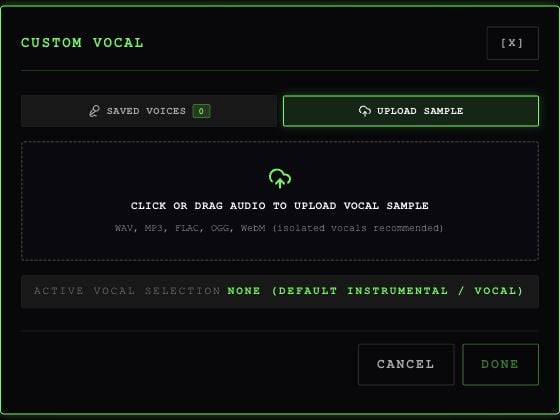
The app's Upload Sample tab.
Save vocals from a generated song
On a READY Studio variation, select SAVE VOICE. Rawchunks keeps a voice profile named from the song and starts preparing its vocals for reuse. Check it in MY-PAGE → MY VOICES, or reopen VOICE → SAVED VOICES. You may see SAVED, PREPARING, READY, or ERROR, with separate Fast and Master status.Reuse a trained voice
Choose FAST or STUDIO MASTER in Studio first. Open SAVED VOICES, select a voice marked Ready for that mode, then DONE. Unready voices are disabled for the selected mode.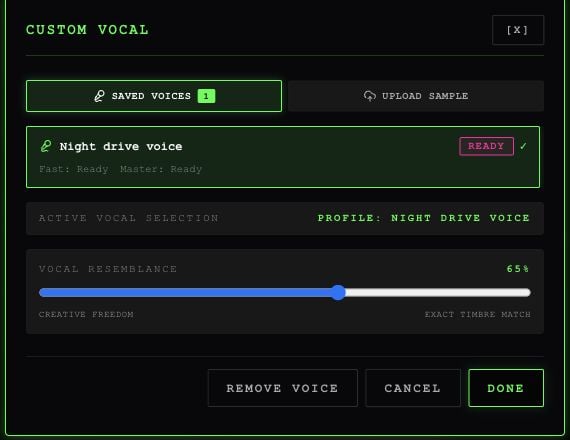
An example prepared voice in the app's saved-voice selector.