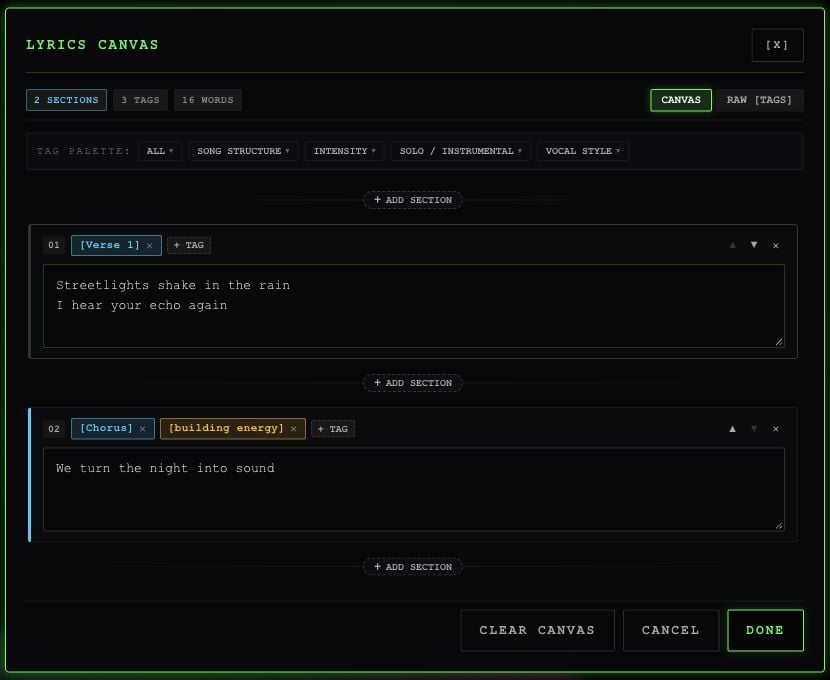
In Studio’s DETAILS, leave INSTRUMENTAL off and select the expand icon inside LYRICS. This opens LYRICS CANVAS.
Lyrics Canvas showing section tags, lyric blocks, insertion controls, Canvas and Raw Tags modes.

The app's structured lyrics canvas with example lyrics.

Build sections in the canvas

  1. In CANVAS, select a separator + and choose a tag to add a section.
  2. Enter the lyrics in that section’s text box.
  3. Use + TAG to add another direction to the same section. Remove a tag with its close button.
  4. Use the section’s arrows to move it up or down, or its delete control to remove it.
  5. Select DONE to apply the sheet to Studio. CANCEL discards edits made in the lyrics dialog.
CLEAR CANVAS removes the current sections so you can start again.

Tags you can choose

Tags guide the result. They don’t guarantee a particular performance or a precisely timed section.

Edit the whole sheet

Switch to RAW [TAGS] to paste or edit everything at once. Put tags on their own lines, followed by the words to sing:
Consecutive tags apply to the same section. Custom bracketed tags are kept, but the palette above gives you the app’s named choices. You can switch back to CANVAS to edit the sheet as blocks.