Select COMMIT in the editor header, or COMMIT SNAPSHOT inside HISTORY.
  1. Enter a description of this project state.
  2. Select SAVE SNAPSHOT with your account connected.
  3. Open HISTORY to see the saved message and time under COMMITS.
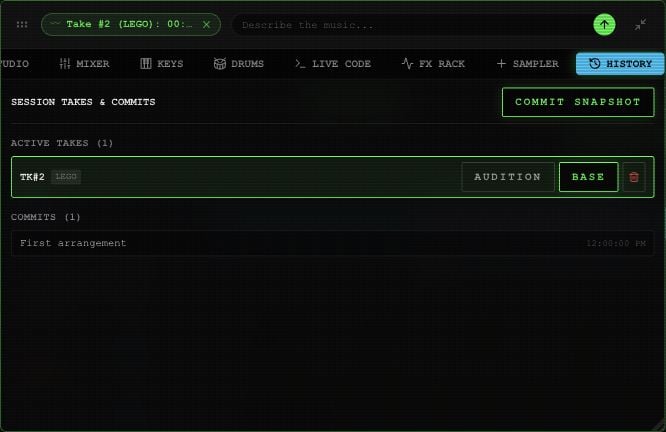
History panel showing Active Takes, a mounted Base take and a Commits entry.

History with an example take and snapshot in the Rawchunks editor.

Snapshots keep the arrangement state as a milestone. The current History panel lists commits; it doesn’t have a restore button for choosing an earlier commit. Reopening the project loads its saved editing state, or the latest arrangement snapshot when available. Use COMMIT to save a named milestone before leaving. ACTIVE TAKES lists the available candidates. SET AS BASE mounts one on Master. The History AUDITION control selects a take; use the take’s play button in EXTRACTED to start its preview. A snapshot and a merged audio result serve different purposes. See takes and merging to keep a candidate in Master, then download the song from My Page.