EXTRACT cuts out a time range. Separate splits a recording into stems such as vocals, drums, and bass.

Extract a source section

  1. Select Master or a separated source lane.
  2. Drag a range over its waveform and adjust the handles.
  3. Select EXTRACT in the board transport.
  4. Wait for the source slice. It appears as a take under EXTRACTED, and the board action starts a WAV download.
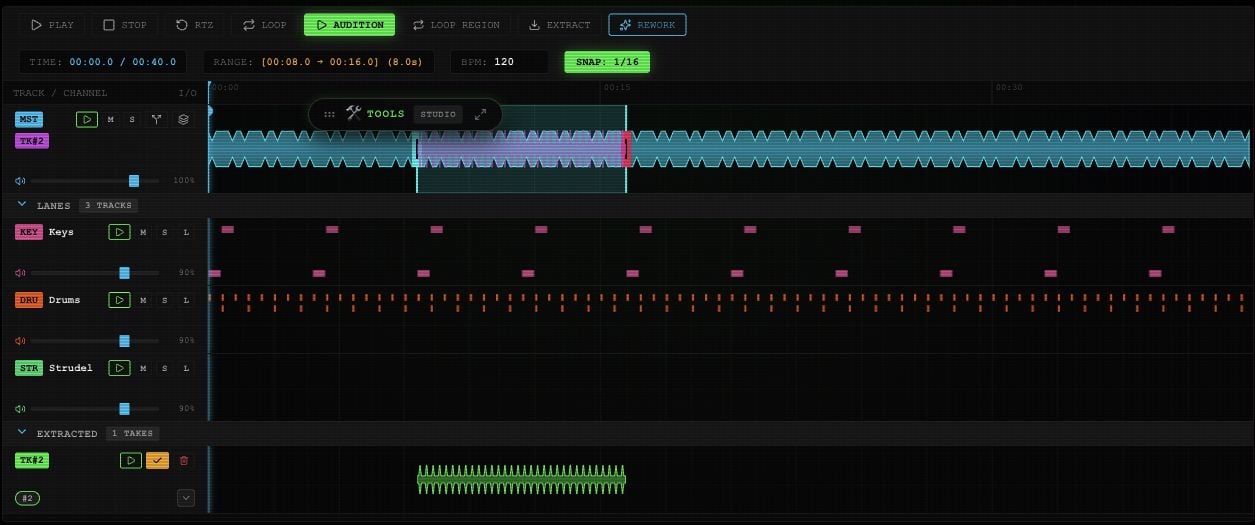
Editor transport and selected waveform range with Extract, Audition, Loop Region and Rework controls.

A selected range in an example Rawchunks project. Extract is beside Loop Region and Rework.

The Mixer also offers EXTRACT SECTION. That creates a take without starting the board’s download. Extraction uses the source audio. It does not include the current mixer or effects, and it is not an export of every added lane. See mounting and merging to keep generated takes in Master.

Separate stems

  1. Open the toolbox’s STUDIO tab and choose Separate.
  2. Set TARGET STEM to All, Vocals, Drums, Bass, Other, or Instrumental.
  3. Select SEPARATE and wait for the stems.
  4. Expand LANES. Use the lane play buttons to check the parts, M to mute, S to solo, and the faders to balance them. New stems may start muted; check M before playback.
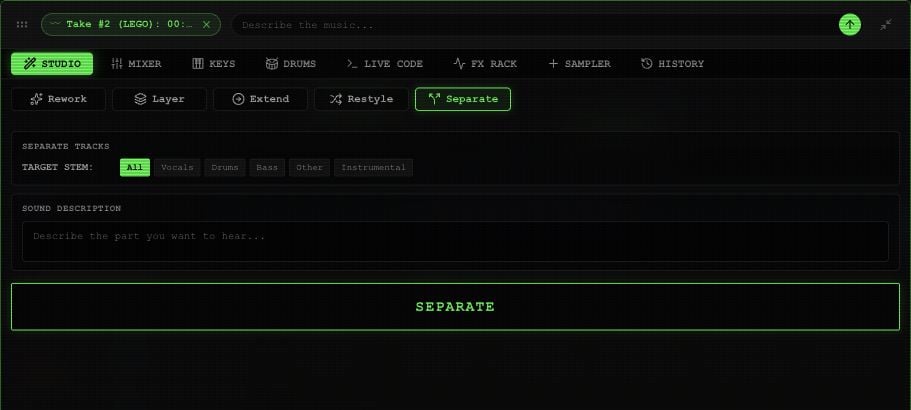
Separate panel with All, Vocals, Drums, Bass, Other and Instrumental target buttons.

Separate controls in an example Rawchunks project.

The Master row’s split icon requests all stems the first time. Once stems exist, it switches between compact and expanded views. Both source extraction and separation have per-request service prices.