> ## Documentation Index
> Fetch the complete documentation index at: https://docs.rawchunks.space/llms.txt
> Use this file to discover all available pages before exploring further.
# Use a custom voice
> Upload a vocal reference, save a song's voice, and reuse a voice when its mode is ready.
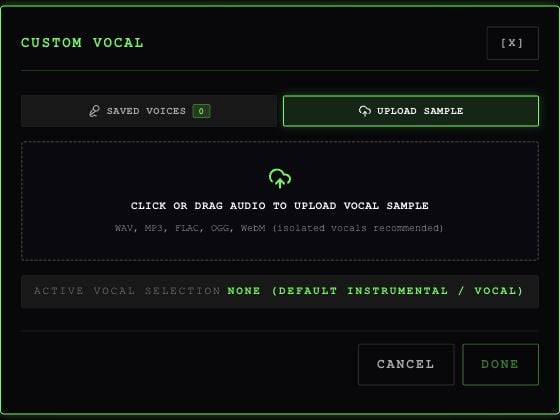
Open Studio → **GLOBAL PARAMETERS** → **VOICE**. **CUSTOM VOCAL** offers an uploaded reference sample or a trained voice from **SAVED VOICES**.
## Use a vocal reference
1. Select **UPLOAD SAMPLE** and choose or drop an audio file. The dialog lists WAV, MP3, FLAC, OGG, and WebM.
2. Review the filename and size. Use **REPLACE** or **REMOVE** to change it.
3. Set **VOCAL RESEMBLANCE**, then **DONE**.
4. Confirm your generation. The app uploads and saves the sample at this point, then uses it as a reference for the track.
 Choose an isolated **mono or stereo** vocal recording of no more than **four minutes** if you want it prepared for trained use. Uploads must be under **50 MiB**. A sample can be saved before preparation finishes; a long recording can save and still fail preparation.
Selecting a file alone does not upload it. The upload and generation have separate [service charges](/app/payments#service-prices).
## Save vocals from a generated song
On a **READY** Studio variation, select **SAVE VOICE**. Rawchunks keeps a voice profile named from the song and starts preparing its vocals for reuse.
Check it in **MY-PAGE → MY VOICES**, or reopen **VOICE → SAVED VOICES**. You may see **SAVED**, **PREPARING**, **READY**, or **ERROR**, with separate **Fast** and **Master** status.
## Reuse a trained voice
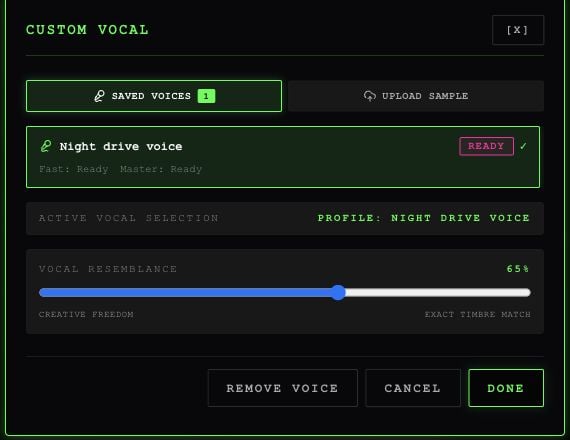
Choose **FAST** or **STUDIO MASTER** in Studio first. Open **SAVED VOICES**, select a voice marked **Ready** for that mode, then **DONE**. Unready voices are disabled for the selected mode.
Choose an isolated **mono or stereo** vocal recording of no more than **four minutes** if you want it prepared for trained use. Uploads must be under **50 MiB**. A sample can be saved before preparation finishes; a long recording can save and still fail preparation.
Selecting a file alone does not upload it. The upload and generation have separate [service charges](/app/payments#service-prices).
## Save vocals from a generated song
On a **READY** Studio variation, select **SAVE VOICE**. Rawchunks keeps a voice profile named from the song and starts preparing its vocals for reuse.
Check it in **MY-PAGE → MY VOICES**, or reopen **VOICE → SAVED VOICES**. You may see **SAVED**, **PREPARING**, **READY**, or **ERROR**, with separate **Fast** and **Master** status.
## Reuse a trained voice
Choose **FAST** or **STUDIO MASTER** in Studio first. Open **SAVED VOICES**, select a voice marked **Ready** for that mode, then **DONE**. Unready voices are disabled for the selected mode.
 Preparation trains a small custom voice adaptation, called **LoRA**, for each generation mode. You don't set training parameters or start a separate training job in the app. A reference sample can be usable before the trained voice is ready.
## Adjust resemblance and check the result
**VOCAL RESEMBLANCE** covers **10–100%**, starting at **65%**. It controls how strongly you request the voice's character. Even at its highest setting, listen to the result before treating it as a match.
In **MY VOICES**, **PLAY SAMPLE** plays the saved reference. **RETRY** refreshes voice status after a loading error; it does not restart training. Use **REMOVE VOICE** in the Studio dialog to clear the generation selection.
This documentation is built and hosted on [Mintlify](https://mintlify.com), a developer documentation platform.
Preparation trains a small custom voice adaptation, called **LoRA**, for each generation mode. You don't set training parameters or start a separate training job in the app. A reference sample can be usable before the trained voice is ready.
## Adjust resemblance and check the result
**VOCAL RESEMBLANCE** covers **10–100%**, starting at **65%**. It controls how strongly you request the voice's character. Even at its highest setting, listen to the result before treating it as a match.
In **MY VOICES**, **PLAY SAMPLE** plays the saved reference. **RETRY** refreshes voice status after a loading error; it does not restart training. Use **REMOVE VOICE** in the Studio dialog to clear the generation selection.
This documentation is built and hosted on [Mintlify](https://mintlify.com), a developer documentation platform.