> ## Documentation Index
> Fetch the complete documentation index at: https://docs.rawchunks.space/llms.txt
> Use this file to discover all available pages before exploring further.
# Connect your account
> Connect, choose a network, and set your artist name and picture.
Select **CONNECT** in the header. Choose a social login, email, passkey, guest account, or one of the offered external wallets, then follow that connection flow.
When the disclaimer appears, read the acknowledgments and select **Sign & accept** to sign them. Generation requires this acknowledgment. You can reopen it from the account menu under **Disclaimer & terms**.
## Choose a network
Open the network button beside **SESSION**. The picker currently offers Base, Solana, and their listed test networks: Base Sepolia, Solana Devnet, and Tempo Moderato. Available choices can change.
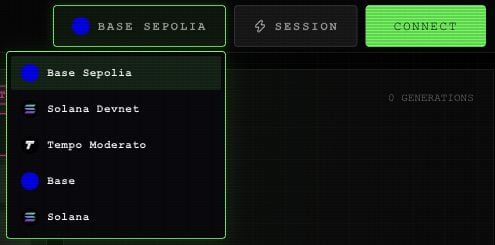 Use the song's network when buying its license or publishing a remix. For service spending, check the balance on the network you select. An account's combined balance display does not move money between networks.
On Solana, an action may ask you to activate the account before it can continue. Follow the funding message shown in the app.
## Set your artist profile
Open **Edit Profile** from the connected account menu, or select the pencil beside your name in **MY-PAGE**.
Enter a nickname of up to 32 characters. Use **PICK IMAGE** to choose an avatar, then **SAVE PROFILE**. Use **CANCEL** to close without saving the profile fields.
The account menu also offers your address, an explorer link, and **Disconnect**. [Start a spending session](/app/payments#start-a-session) when you're ready to use paid services.
On a phone, header controls use icons. The network button and lightning-shaped session button stay in the header.
This documentation is built and hosted on [Mintlify](https://mintlify.com), a developer documentation platform.
Use the song's network when buying its license or publishing a remix. For service spending, check the balance on the network you select. An account's combined balance display does not move money between networks.
On Solana, an action may ask you to activate the account before it can continue. Follow the funding message shown in the app.
## Set your artist profile
Open **Edit Profile** from the connected account menu, or select the pencil beside your name in **MY-PAGE**.
Enter a nickname of up to 32 characters. Use **PICK IMAGE** to choose an avatar, then **SAVE PROFILE**. Use **CANCEL** to close without saving the profile fields.
The account menu also offers your address, an explorer link, and **Disconnect**. [Start a spending session](/app/payments#start-a-session) when you're ready to use paid services.
On a phone, header controls use icons. The network button and lightning-shaped session button stay in the header.
This documentation is built and hosted on [Mintlify](https://mintlify.com), a developer documentation platform.